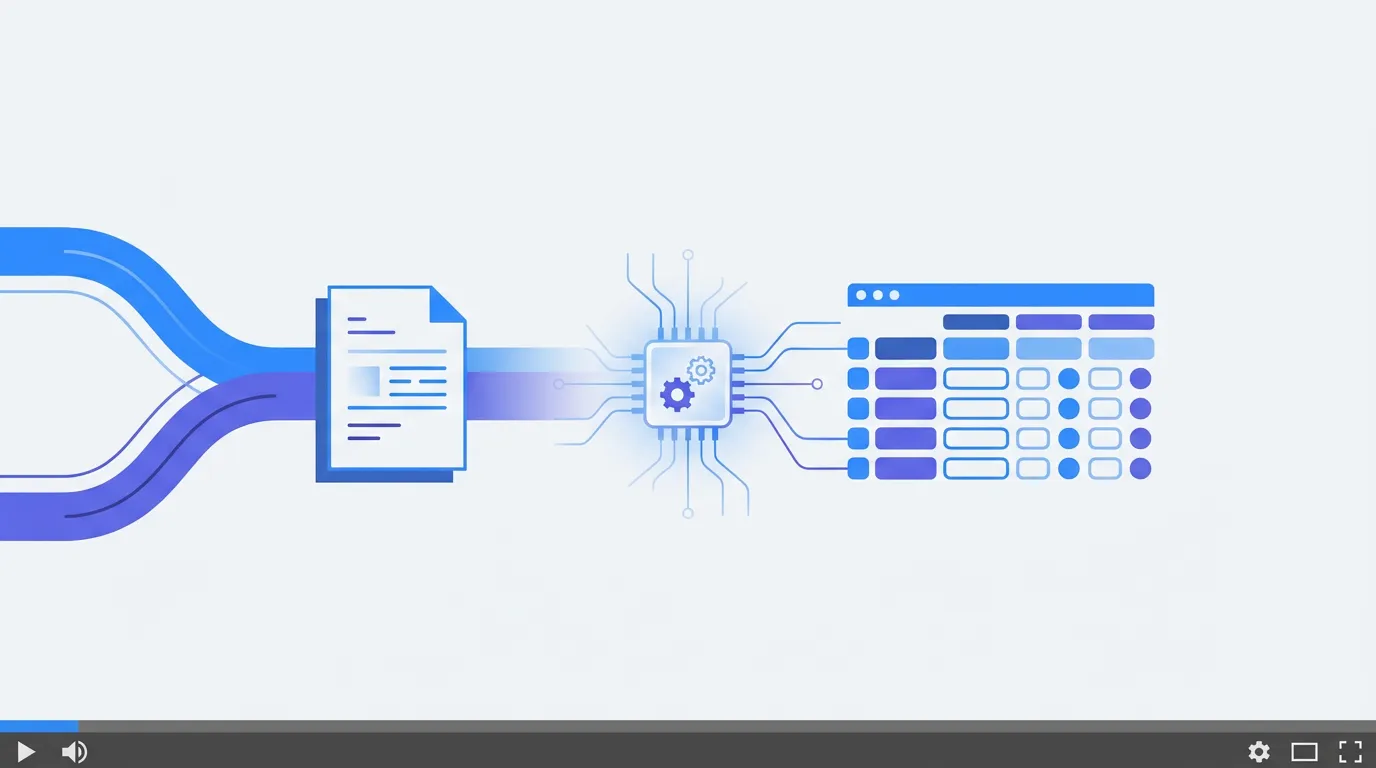
- -You can extract invoice data to Excel manually, with free converters, through Excel's built-in tools, or with AI-powered automation. — You can extract invoice data to Excel manually, with free converters, through Excel's built-in tools, or with AI-powered automation.
- -Manual entry costs 5–13x more per invoice than automated extraction (Ardent Partners). — Manual entry costs 5–13x more per invoice than automated extraction (Ardent Partners).
- -AI tools like Parsli extract vendor names, line items, totals, and dates from any invoice layout — no templates required.
- -For recurring invoices, automation pays for itself within the first month. — For recurring invoices, automation pays for itself within the first month.
What Is Invoice Data Extraction?
Invoice data extraction is the process of pulling specific fields — vendor name, invoice number, date, line items, tax, total — from an invoice document and putting them into a structured format like an Excel spreadsheet, CSV file, or accounting system.
The challenge is that invoices come in dozens of formats. Every vendor uses a different layout. Some send native PDFs, others send scanned copies, some email them as attachments, and a few still fax them. Extracting data from all of these into a single consistent spreadsheet is the core problem.
For a deeper look at the technology behind this, see our guide on what is document parsing.
Why Copying Invoice Data by Hand Doesn't Work
You know the routine. Open the PDF. Find the invoice number. Switch to Excel. Type it in. Switch back. Find the vendor name. Switch to Excel. Type it in. Repeat for the date, each line item, the tax, the total. Close the PDF. Open the next one. Do it 50 more times.
Here's what this costs you in practice:
- 12 minutes per invoice. According to Ramp, the average AP clerk processes 5 invoices per hour. That's 40 hours a month for a team handling 1,000 invoices — an entire full-time employee doing nothing but copying data.
- 1–4% error rate on every batch. Conexiom reports that manual data entry without verification produces up to 4 errors per 100 entries. A wrong total or mistyped vendor name cascades into payment errors, duplicate payments, and messy reconciliation.
- Duplicate payments bleed money. The Association for Financial Professionals estimates that 1–2.5% of total disbursements are duplicate or erroneous. For a business paying $1 million in invoices annually, that's $10,000–$25,000 in overpayments.
- Late payments cost $39,406 per year. According to Intuit QuickBooks, late payments due to slow processing cost the average business $39,406 annually in penalties, lost early-payment discounts, and strained vendor relationships.
- It doesn't scale. When invoice volume doubles, you hire another person. When it triples, you hire two more. Each new hire introduces more inconsistency and more errors.
If you're processing more than 20 invoices a month by hand, automation isn't a luxury — it's arithmetic.
Four Methods to Extract Invoice Data to Excel
Method 1: Copy-Paste from the PDF (Free, Slow)
The simplest approach. Open the invoice PDF, select the text, copy, paste into Excel. For native PDFs (digitally created, not scanned), this sometimes works — especially for simple invoices with a clear layout.
When this works:
- You have fewer than 10 invoices per month
- Invoices are native PDFs (not scans or photos)
- You don't need line-item-level detail
When this breaks:
- Scanned invoices — you can't select text from an image
- Table data — Excel mashes columns together on paste
- Any real volume — 20+ invoices makes this unsustainable
Cost: Free (plus your time at $15–$40 per invoice in labor).
Method 2: Excel's Built-in "Get Data from PDF" (Free, Limited)
Excel has a little-known feature: Data → Get Data → From File → From PDF. It attempts to identify tables in a PDF and import them as structured data. It uses Power Query under the hood.
How to do it: 1. Open Excel → Data tab → Get Data → From File → From PDF 2. Select your invoice PDF 3. Excel shows detected tables — pick the one with your data 4. Click "Load" to import into your spreadsheet
When this works:
- Native PDFs with well-structured tables
- Single invoices at a time
- You're already in Excel and want a quick import
When this breaks:
- Scanned or image-based invoices (doesn't include OCR)
- Invoices without clear table structure
- Multi-page invoices or invoices with merged cells
- Batch processing — you can't process 50 invoices at once
Cost: Free (requires Microsoft 365 or Excel 2019+).
Method 3: Free Online PDF-to-Excel Converters (Free, Risky)
Tools like Smallpdf, ILovePDF, and Zamzar let you upload an invoice PDF and download an Excel file. They do basic conversion but don't understand invoice structure — they just try to reproduce the PDF layout in a spreadsheet.
When this works:
- Simple, single-page invoices with obvious table structure
- You need a quick one-off conversion
- You're willing to clean up the output manually
When this breaks:
- The output rarely maps to your desired columns. You'll get the vendor name in one cell, the address in three cells below it, line items scattered across random columns, and totals disconnected from their labels.
- Privacy risk. You're uploading invoices — which contain vendor details, payment amounts, and sometimes bank information — to a third-party server. Most free tools have vague data retention policies.
- No batch processing. One file at a time.
Cost: Free (with significant manual cleanup time and privacy trade-offs).
For a deeper comparison of all PDF-to-Excel methods, see our full guide on extracting data from PDF to Excel.
Method 4: AI-Powered Invoice Extraction (Fast, Accurate, Automated)
This is where the real efficiency gain lives. AI-powered tools use optical character recognition and machine learning to read any invoice — native PDF, scan, photo, email attachment — identify the fields (vendor, number, date, line items, total), and output structured data directly to Excel, Google Sheets, CSV, or JSON.
The difference from the methods above: AI understands invoice structure. It doesn't just convert pixels to text — it knows that "Net 30" is a payment term, "$7,290.00" next to "Total Due" is the total, and "Acme Supply Co." at the top is the vendor name. It works across any vendor's layout without templates or rules.
How it works with Parsli: 1. Create a parser and describe the fields you want (vendor name, invoice number, date, line items, total) 2. Upload invoices — drag and drop, forward by email, or send via API 3. AI extracts all fields with confidence scores in seconds 4. Export to Excel, CSV, Google Sheets, or push to accounting software via Zapier or Make
For a quick one-off, try Parsli's free invoice parser or the PDF to Excel converter — no account needed.
When this works:
- Any invoice volume — 10 or 10,000 per month
- Any format — PDF, scan, photo, email, Word doc
- Any vendor layout — no templates needed
- You need data in a consistent spreadsheet format
When this breaks:
- Extremely damaged or illegible scans (though modern OCR handles surprisingly poor quality)
- Free tiers have page limits (Parsli: 30 pages/month free; higher volumes start at $20/month for 250 pages)
Cost: Free for low volume. $20–$499/month for 250–25,000 pages. Per-page cost drops as volume increases.
Forrester reports that finance automation delivers 111% ROI with payback in under 6 months. For most businesses processing 100+ invoices monthly, the tool pays for itself in the first billing cycle.
See Parsli in Action
Click through the interactive tour — from creating an invoice parser to extracting structured data into a spreadsheet.
See Parsli in Action
Parsli extracts structured data from PDFs, invoices, and emails — automatically. Free forever up to 30 pages/month.
No credit card required. · Or book a demo call
Which Method Should You Use?
- Your Situation: Fewer than 10 simple invoices/month | Best Method: Copy-paste or Excel Get Data | Why: Free and fast enough at low volume
- Your Situation: 10–50 invoices/month, all native PDFs | Best Method: Excel Get Data + manual cleanup | Why: Free, decent accuracy on structured PDFs
- Your Situation: 50–200 invoices/month, mixed formats | Best Method: AI extraction (free tier + starter) | Why: Time savings exceed subscription cost within weeks
- Your Situation: 200+ invoices/month | Best Method: AI extraction (growth/pro plan) | Why: Manual processing would require additional headcount
- Your Situation: Invoices arrive by email | Best Method: AI extraction with email forwarding | Why: Auto-process attachments without manual upload
- Your Situation: Need data in accounting software | Best Method: AI extraction + Zapier/Make | Why: End-to-end automation, no spreadsheet step needed
The honest answer: if you're processing fewer than 10 simple invoices a month, you probably don't need a tool. Copy-paste works. But the moment you're spending more than an hour a month on invoice data entry, automation saves you money — even on a free plan.
What Fields Can You Extract from Invoices?
AI tools can identify and extract virtually any field that appears on a standard invoice. Here are the most commonly extracted fields:
- Field: Vendor name | Description: Company that issued the invoice | Example: Summit Office Supplies
- Field: Vendor address | Description: Billing address of the vendor | Example: 890 Commerce Dr, Denver, CO
- Field: Invoice number | Description: Unique identifier | Example: SO-4817
- Field: Invoice date | Description: Date issued | Example: 2026-03-10
- Field: Due date | Description: Payment deadline | Example: 2026-04-09
- Field: PO number | Description: Purchase order reference | Example: PO-2026-0089
- Field: Line items | Description: Table of products/services with qty, unit price, total | Example: Copy Paper (10), $8.50, $85.00
- Field: Subtotal | Description: Pre-tax total | Example: $289.98
- Field: Tax amount | Description: Sales tax or VAT | Example: $23.20
- Field: Total amount | Description: Final amount due | Example: $313.18
- Field: Currency | Description: Currency code | Example: USD
- Field: Payment terms | Description: Net 30, Net 60, etc. | Example: Net 30
For a full walkthrough of invoice field extraction, see our guide on extracting line items from invoices.
Real-World Example: 200 Invoices Per Month
Let's do the math for a small business processing 200 vendor invoices per month.
Manual approach:
- 200 invoices × 12 minutes each = 40 hours/month
- At $25/hour loaded labor cost = $1,000/month
- Error rate of 2% = 4 invoices with mistakes, each costing ~$50 to fix = $200/month in error costs
- Total: $1,200/month (plus late-payment risks)
AI extraction with Parsli (Starter plan — $20/month for 250 pages):
- 200 invoices × 3 seconds each = 10 minutes/month (plus ~30 minutes for setup and review)
- Error rate: <1% with confidence scoring
- Total: $20/month + maybe 1 hour of review time
Annual savings: ~$14,000 — and your AP person gets 39 hours a month back for higher-value work.
This math is why Forrester found that AP automation pays back within 6 months even at enterprise scale.
Frequently Asked Questions
Can I extract invoice data to Excel for free?
Yes. Excel's built-in "Get Data from PDF" feature is completely free and works for native PDFs. For scanned invoices or more complex formats, Parsli offers **30 free pages per month** with full extraction capabilities and Excel/CSV export — no credit card required.
Does this work with scanned or photographed invoices?
Yes — but only with tools that include [OCR (optical character recognition)](/guides/ocr-data-capture). Copy-paste and Excel's Get Data feature don't work on scans. AI-powered tools like Parsli, [Nanonets](/compare/nanonets), and [Google Document AI](/compare/google-document-ai) all include OCR and handle scanned documents well.
How accurate is AI invoice extraction?
On clean, well-formatted invoices, most AI tools hit **97–99% accuracy** on core fields (vendor name, total, date). Accuracy drops on poor-quality scans or handwritten invoices, but modern multimodal models handle these better than traditional OCR. Parsli shows confidence scores on every field so you can spot-check anything the AI is uncertain about.
Can I extract line items (individual products) from invoices?
Yes. Table extraction — pulling individual line items with descriptions, quantities, unit prices, and totals — is one of the hardest problems in document extraction, but AI handles it well. Parsli extracts line items as structured table data you can export directly to Excel rows. See our guide on [extracting line items from invoices](/guides/extract-line-items-from-invoices).
What if every vendor sends invoices in a different format?
This is exactly what AI extraction solves. Template-based tools (like [Docparser](/compare/docparser)) require you to set up a new template for each vendor layout. AI tools read the document the way a human would — they understand context regardless of layout. One parser handles invoices from 100 different vendors.
Can I automate this so invoices go straight from email to Excel?
Yes. With Parsli, you can set up [email forwarding](/integrations/gmail) — invoices sent to a dedicated email address are automatically processed and the extracted data is pushed to [Google Sheets](/integrations/google-sheets) or any connected app via [Zapier](/integrations/zapier) or [Make](/integrations/make). Zero manual steps once configured.
Is my invoice data secure during extraction?
Security varies by tool. Parsli never uses your documents to train AI models, processes data over encrypted connections, and is GDPR compliant. Free online converters typically offer fewer privacy guarantees — always check a tool's data processing agreement before uploading sensitive financial documents.
Related Resources
More Guides
How to Extract Line Items from Invoices Automatically
Learn 3 methods to extract line items from invoices — manual, Python, and AI-powered. Compare accuracy, speed, and cost for each approach.
Document ExtractionHow to Extract Data from Bank Statements (PDF to Excel)
Learn how to extract transactions, balances, and account details from bank statement PDFs. Compare manual, Python, and AI methods.
Data ConversionHow to Convert Receipts to Spreadsheet Data
Learn how to convert paper and digital receipts into structured spreadsheet data. Compare scanning apps, OCR tools, and AI extraction.
Talal Bazerbachi
Founder at Parsli